MacBook
MacBook Not Charging? Charger, Port or Battery: How to Tell
In this article
A MacBook that won't charge usually comes down to one of four things, and you should check them in this order because it runs cheapest to dearest: the charger, the cable, the charging port, then the battery itself. Work through the swap tests below first. They cost nothing, and they tell you exactly which part to blame before you pay anyone.
By the Citri Mobile Repair Team · Updated August 2026 · Rated 5.0★ from 2,300+ Google reviews · 15 years repairing MacBooks in Singapore.
How do I tell if it's the charger or the MacBook?
Swap tests, one variable at a time. Borrow a known-good charger and cable (a colleague's or a family member's is fine) and try them on your MacBook. If it charges, your charger or cable was the problem, and that's the cheap outcome. If it still won't charge, plug your own charger into someone else's Mac. Charger works there? The fault is inside your machine.
Two things trip people up during the swap test:
- Wattage. A 30W phone charger can put a trickle into a MacBook Air but will barely move a 16-inch Pro, and under load the battery can even drain while plugged in. That's not a fault. Check the wattage printed on the brick; a 14 or 16-inch MacBook Pro wants 67W or more to charge properly.
- Cheap USB-C cables. Plenty of third-party USB-C cables are data-only or capped at 60W. If you're testing with a random cable from a drawer, you're not really testing. Use the cable that came with a Mac or a certified high-wattage one.
Which port you use matters too. MacBooks from 2016 to 2020 charge through any USB-C/Thunderbolt port, while 2021-onward Pros and the M2-onward Airs went back to MagSafe 3 but still accept USB-C charging. If MagSafe is dead, try a USB-C port before concluding anything: a MagSafe that won't charge while USB-C works fine points at the MagSafe board or cable rather than anything serious.
Why does my MacBook charge only sometimes?
Intermittent charging is nearly always a connection problem, and there are three usual suspects:
- Debris in the port. Pocket-bag lint and grit pack into USB-C ports until the plug seats but doesn't make full contact. Shine a torch in and look. If there's fluff, ease it out gently with a dry wooden toothpick with the machine off. Never anything metal, never anything wet.
- A strained cable. Cables fail at the ends first. If charging cuts in and out when you wiggle the cable near the plug, you've found it. Replace the cable before suspecting the Mac.
- One port works, another doesn't. Common on the 2016–2020 13-inch models: one side charges reliably, the other side is fussy. A single dead port with the rest working is a port or board issue on that side. Use the good side in the meantime, but it's worth a proper look, because a failing port can take other things with it.
If the Mac charges only when the lid is at a certain angle, or only on some days, mention that when you bring it in. Symptoms like that shortcut the diagnosis considerably.
Is it the battery? How to check cycle count and battery health
Every MacBook battery has a designed lifespan measured in charge cycles, and macOS keeps the count for you. Hold the Option key, click the Apple menu, choose System Information, then look under Power for "Cycle Count". Apple's guide to battery cycle counts explains the numbers, and the short version is that modern MacBooks are rated for 1,000 cycles, by which point the battery is designed to retain up to 80% of its original capacity.
For the quick verdict without the numbers, go to System Settings → Battery and look at Battery Health. "Normal" means the cell is fine and your charging problem lives elsewhere. "Service Recommended" means the battery has aged out, and a worn battery can behave exactly like a charging fault: stuck at a low percentage, draining while plugged in, or shutting the Mac down the moment the charger comes out.
One setting worth knowing before you panic: macOS holds the charge at 80% deliberately when Optimised Battery Charging decides you don't need a full tank yet. A Mac that sits at 80% and says "On Hold" isn't broken. Click the battery icon and choose "Charge to Full Now" if you need it topped up.
If the battery is the answer, an Original Grade replacement at Citri Mobile runs $85–$105 nett depending on model. The full price breakdown and the is-it-worth-it maths are in our MacBook battery replacement cost guide.
When is it a board-level problem?
Here's what we see on the bench when a "dead charger" turns out to be neither the charger nor the battery. The most common story involves liquid: a splash near the port weeks earlier, cleaned up and forgotten, that's been corroding the charging circuit ever since. The customer swears the Mac was never wet, and then the port shield comes off and the corrosion is right there. The second story is the charging IC, a small chip on the logic board that manages power in. When it fails, the Mac can look completely dead or charge erratically, and no amount of new chargers will fix it.
Signals that point at the board rather than the port or battery: the Mac won't charge from any port with any charger, charging stopped after a spill or a drop, or the machine is dead and our guide to a MacBook that won't turn on didn't revive it. Liquid cases have their own path, covered in our MacBook liquid damage guide, and the first rule is to stop charging it, because current plus moisture is what does the lasting damage.
We don't put a number on board-level work up front, because an honest price needs the board under a microscope first. Diagnosis is free, and we quote before touching anything.
MacBook charging repairs at Citri Mobile
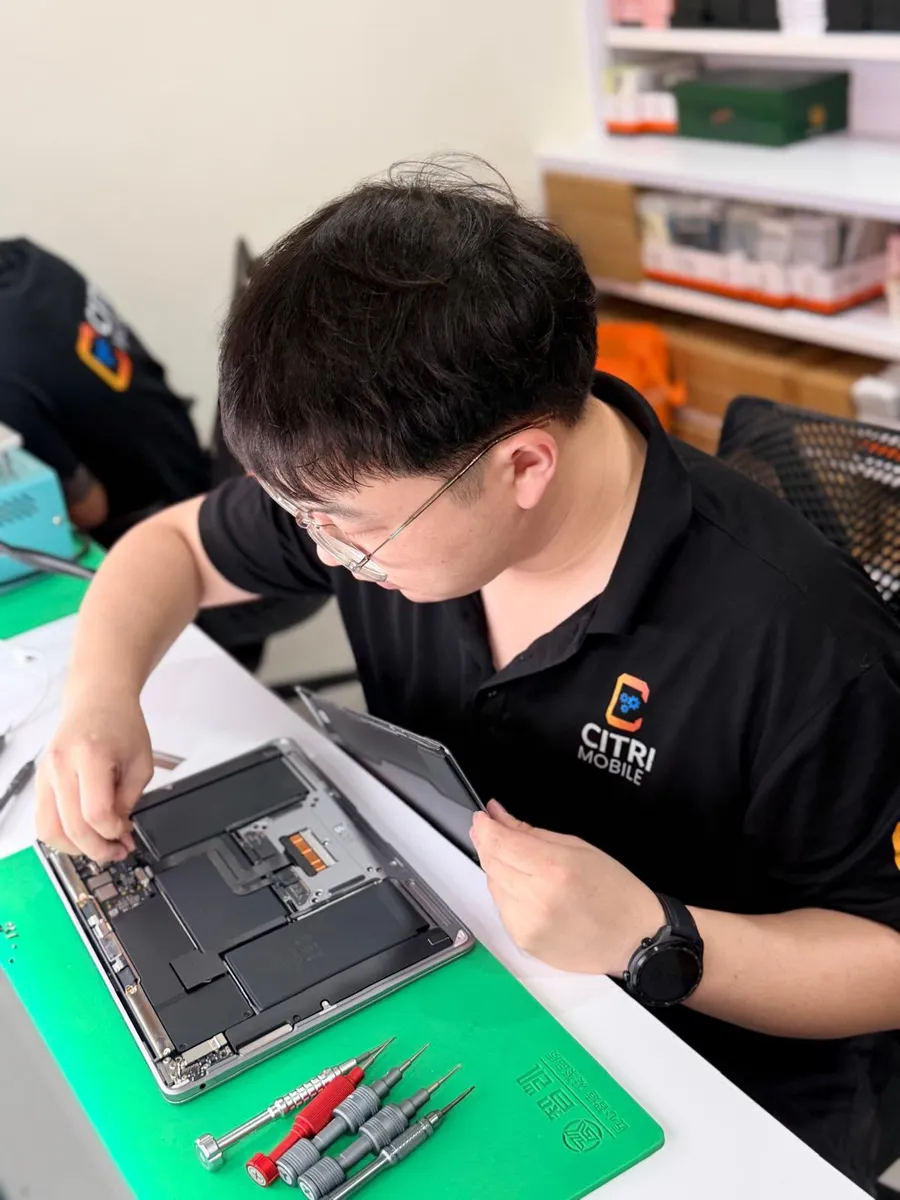
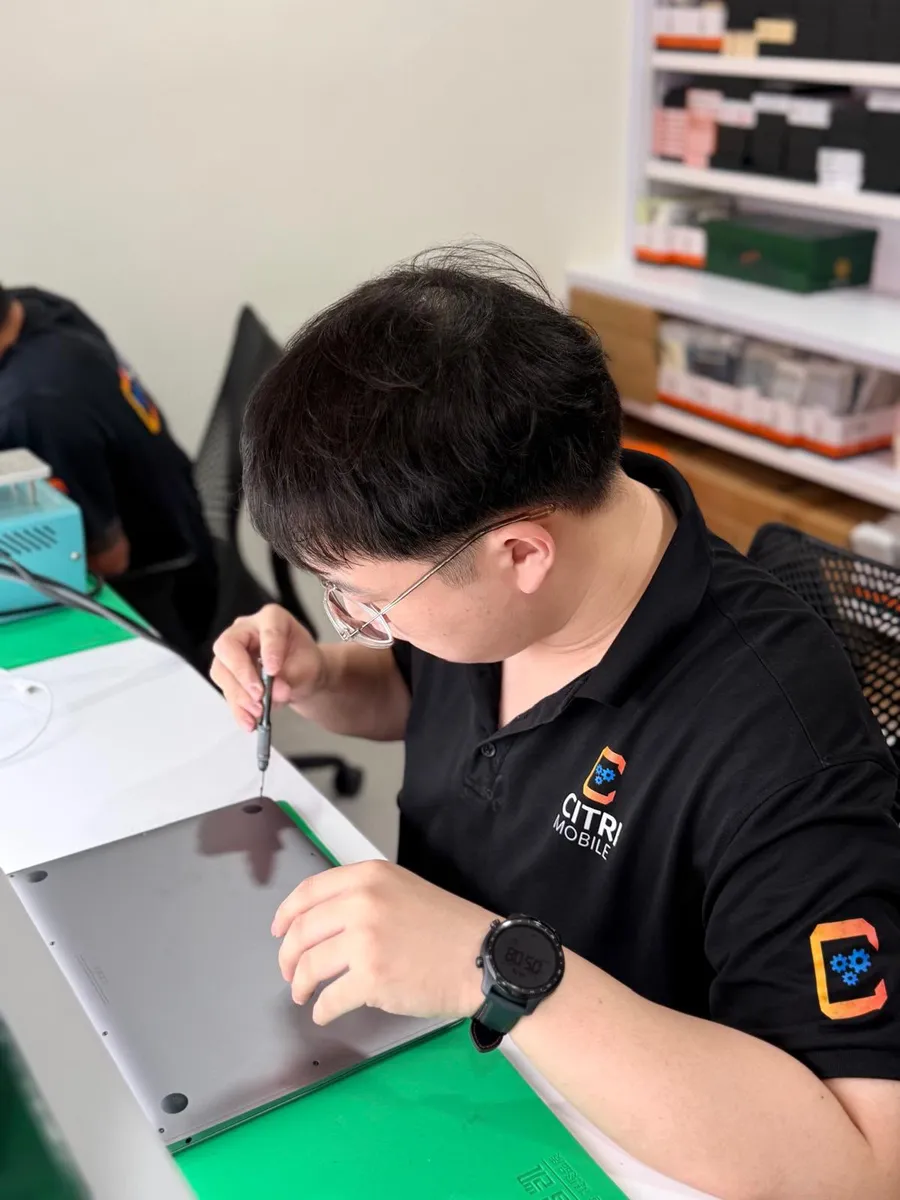
If the swap tests point inside the machine, bring it in. A charging port replacement is $85–$95 nett and a battery is $85–$105, both with Original Grade parts and a 30-100 days warranty; live per-model prices are on our MacBook repair page, with the service detail on the charging port and battery pages. Your data stays on the machine for port and battery work.
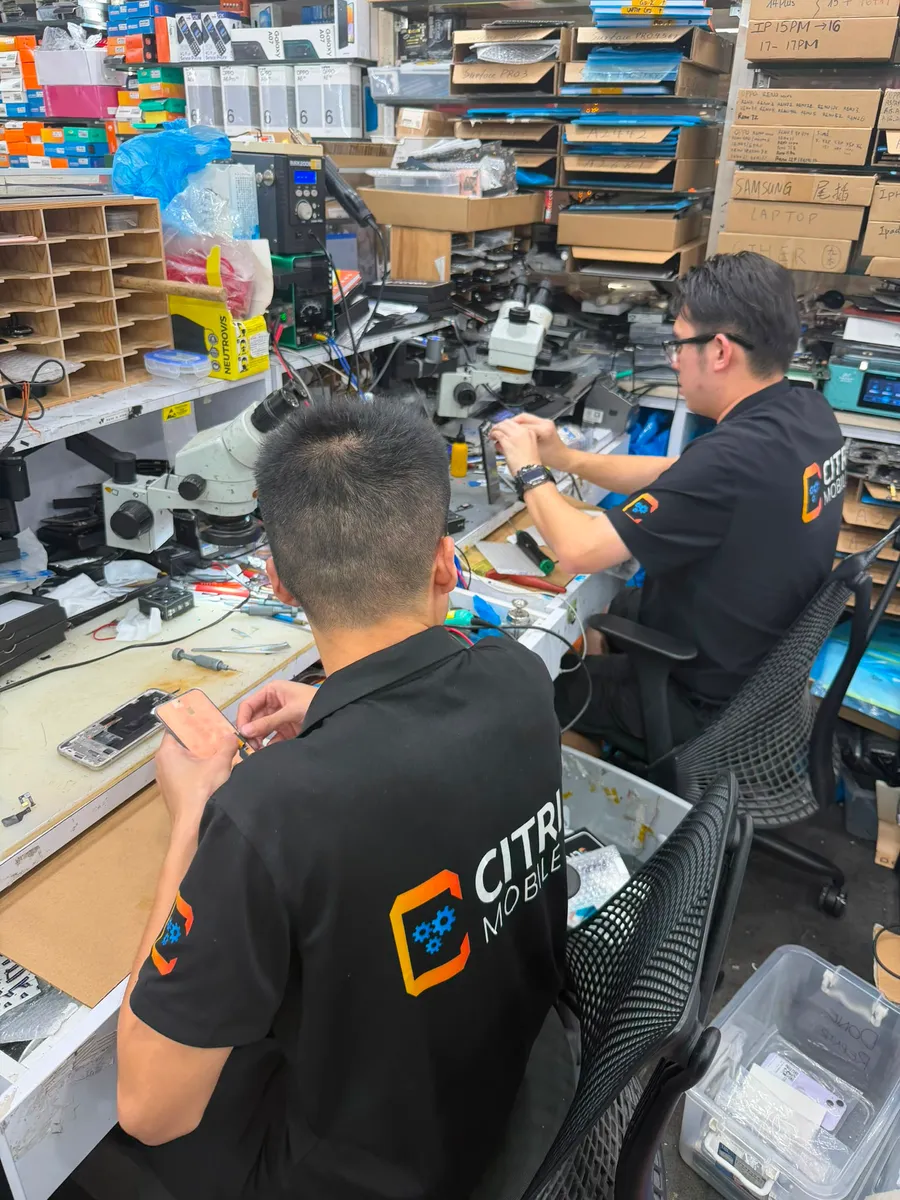
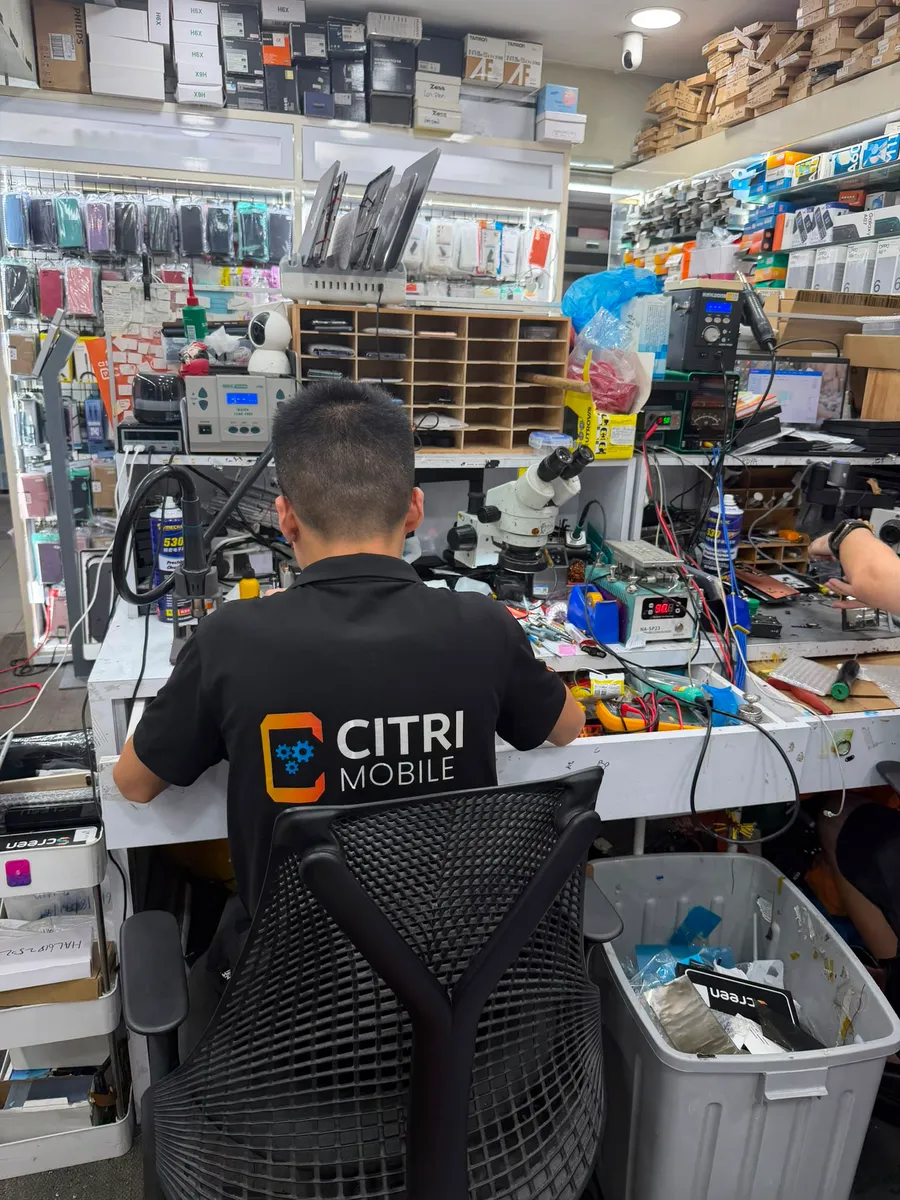
Four branches, open 11am–9pm daily: People's Park Centre (Chinatown), Tampines, Yishun and Jurong Point. Walk-ins are welcome, but WhatsApp +65 9456 6455 first so we can confirm parts for your exact model are in stock. Most port and battery jobs are done the same day; if yours needs board work, we'll tell you before we start, not after. And since a Mac in for repair is a Mac out of your hands for a few hours, it's worth a quick backup first.
MacBook not charging: FAQs
- Why is my MacBook plugged in but not charging?
Usually the charger is too weak, the cable has failed, the port is blocked or damaged, or the battery has aged out. Check System Settings → Battery first: "On Hold at 80%" is a feature, not a fault, while "Service Recommended" means the battery itself is due. If a known-good charger and cable change nothing, the fault is inside the Mac.
- Can I charge a MacBook with a non-Apple charger?
Yes, as long as it's a quality USB-C PD charger with enough wattage: roughly 30W for an Air, 67W or more for the 14 and 16-inch Pros. The problems come from cheap, underpowered bricks and data-only cables, which charge slowly, intermittently, or not at all under load.
- How much does a MacBook charging port repair cost in Singapore?
$85–$95 nett at Citri Mobile, depending on model, with a 30-100 days warranty. If diagnosis shows the fault is on the logic board rather than the port itself, we quote that separately after a free inspection.
- How do I check my MacBook's battery cycle count?
Hold the Option key, click the Apple menu, choose System Information, then look under Power. Modern MacBooks are rated for 1,000 cycles; past that point the battery still works but holds noticeably less charge, and replacement is what restores full battery life.