MacBook
Is Your MacBook Pro or Air Not Turning On? Here's What to Do

In this article
A MacBook that won’t turn on can disrupt your workflow and daily routines, leaving you frustrated and unsure of what to do next. Before you panic, it’s important to understand why your MacBook Pro or MacBook Air might not power up and explore possible solutions. In this guide, we’ll walk you through common troubleshooting steps and highlight when to seek professional MacBook repair in Singapore.
How to Troubleshoot a MacBook That Won’t Turn On
Before jumping to conclusions, let’s rule out the most basic issues. Here are some simple steps to get started:
1. Check the Power Source
Sometimes, the issue is as straightforward as a drained battery.
- Ensure your MacBook is properly connected to a working power source.
- Allow it to charge for at least 30 minutes before attempting to power it on.
If your MacBook still doesn’t respond, it might be time to examine the charging setup.
2. Inspect Your Charger and Cables
A faulty charger or adapter can prevent your MacBook from charging.
- Look for signs of wear, such as frayed cables or bent connectors.
- If your charger has an indicator light that isn’t glowing, it could be defective.
- Test the charger with another device or outlet to rule out the power source as the problem.
If none of these fixes work, you may need a MacBook battery replacement.
3. Adjust the Brightness
It may sound obvious, but a dimmed screen can make it seem like your MacBook isn’t turning on.
- Press the brightness adjustment keys or slide the brightness control to the right.
- Check for a faint glow or the startup sound to confirm if the MacBook is on.
4. Disconnect External Devices
Sometimes, faulty peripherals can interfere with the startup process. Unplug any external devices like USB drives, monitors, or docking stations.
5. Perform a Power Cycle
MacBooks have 3 states: On, Off and Sleep. If your MacBook is stuck in sleep mode, a power cycle can help reset it.
- Connect your MacBook to its charger.
- Hold down the Power button for 10 seconds to force a shutdown.
- Wait a few seconds, then press the Power button again to restart.
6. Boot into Recovery Mode
Recovery Mode is a special troubleshooting mode on your MacBook that can help you fix problems with your system’s startup disk. Here’s how to do it step by step:
Steps to Enter Recovery Mode:
- Turn off your MacBook completely.
- Press and hold the Command (⌘) + R keys.
- Turn the MacBook back on by pressing the Power button while still holding Command (⌘) + R.
- Keep holding the keys until you see the Apple logo or a spinning globe on the screen. This means your MacBook is booting into Recovery Mode.
What to Do in Recovery Mode:
- Once in Recovery Mode, you’ll see a menu with several options.
- Select Disk Utility from the list, then click Continue.
- In Disk Utility:
- Locate your MacBook’s startup disk (usually named "Macintosh HD").
- Select it, then click First Aid at the top of the window.
- Click Run to let Disk Utility check for errors and repair them if needed.
If Disk Utility finds issues it can’t fix, it might indicate deeper problems with your MacBook’s hardware or software. In such cases, you may need to reinstall macOS or consult a professional MacBook repair Singapore service.
7. Reset the SMC (System Management Controller)
The System Management Controller (SMC) is responsible for managing low-level hardware functions like battery charging, thermal management, and power button behaviour. If your MacBook isn’t turning on, resetting the SMC can often solve the problem.
Steps to Reset the SMC for MacBooks with Non-Removable Batteries:
- Ensure your MacBook is turned off.
- Connect the charger to your MacBook.
- On the keyboard, press and hold the following keys simultaneously for 10 seconds: Shift (on the left side) + Control (on the left side) + Option (on the left side) + Power button.
- Release, then turn on your MacBook.
- Press the Power button again to turn on your MacBook.
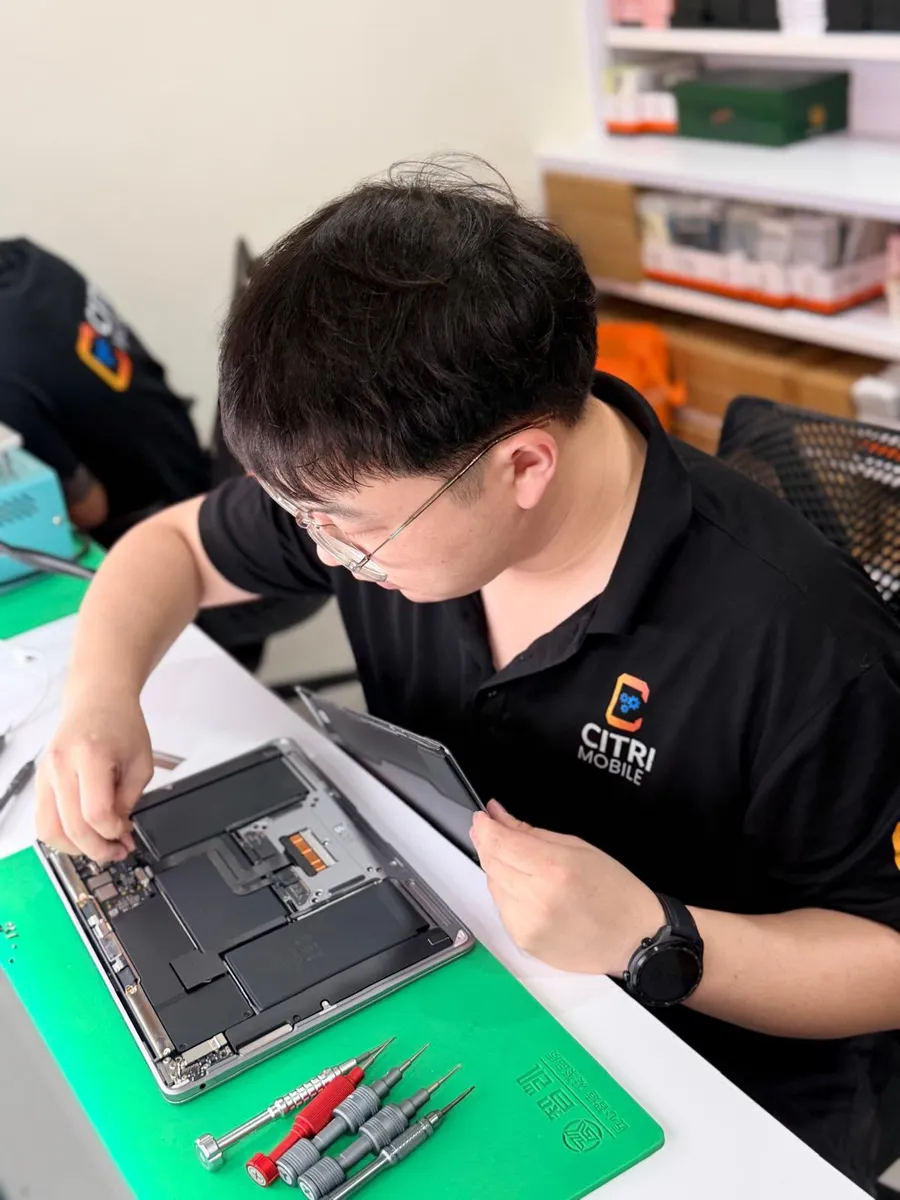
If resetting the SMC doesn’t resolve the issue, the problem could be related to your MacBook’s logic board, battery, or other internal components. Professional help might be required for a MacBook battery replacement, MacBook logic board repair, or other specialised services.
MacBook Still Not Turning On?
If the above steps don’t resolve the issue, your MacBook may have a more serious problem. Here are common causes:
- MacBook Battery Issues
A failing or completely drained battery is a common culprit. Over time, batteries lose their efficiency, making a MacBook battery replacement necessary.
- Logic Board Problems
The logic board (or motherboard) is the heart of your MacBook, managing all its hardware. Damage caused by electrical surges or regular wear and tear can prevent your MacBook from turning on. A MacBook logic board repair or MacBook motherboard repair may be required.
- Water Damage
Spills and moisture exposure can wreak havoc on your MacBook’s internal components. If you suspect water damage, avoid turning on your device and seek immediate MacBook water damage repair.
- Faulty Keyboard
Sometimes, the issue might be with the power button itself, which is part of the keyboard assembly. A MacBook keyboard replacement could resolve this problem.
Conclusion
A MacBook that won’t turn on can be frustrating, but many issues are easy to fix at home with careful troubleshooting.
For more complex problems like logic board failures or water damage, trust the experts at Citrimobile. From battery replacements to specialised repairs, our experienced technicians are ready to help. Contact us today for reliable MacBook repair services.
MacBook won't turn on: FAQs
- How do I know if it's the battery or the logic board?
Start by testing with another charger and cable. If it still won't power on and shows no sign of charging, the problem may be deeper, like the logic board. We run a free diagnostic to pin it down before quoting anything.
- Can I recover my data if the MacBook won't turn on?
Yes, in many cases. Even a MacBook that won't power on, or that has liquid or physical damage, can often have its data recovered by a professional data recovery service.
- Is it cheaper to repair or replace a MacBook that won't turn on?
Usually to repair. A battery or a board-level fix is a fraction of the price of a new MacBook, and you keep all your data. We give you a clear cost breakdown before we start, so you can decide.
- What parts do you use for MacBook repairs?
We fit Original Grade parts for MacBook repairs, backed by a 30-100 days warranty. As an Apple Independent Repair Provider we also handle out-of-warranty Apple work with the proper tools and parts.
- Do I need to book an appointment?
No. You can walk in to any of our four branches, open 11am to 9pm daily. Message or call us first on +65 9456 6455 so we can confirm we have your part in stock before you make the trip.