MacBook
MacBook Stuck on the Apple Logo or Loading Bar? What to Try, in Order
In this article
- Is my MacBook actually stuck, or just updating?
- What should I try first when my MacBook is stuck on the Apple logo?
- Does safe mode help with a startup hang?
- How do I get into macOS Recovery?
- How do I run Disk Utility First Aid on a MacBook that won't start?
- Will reinstalling macOS delete my files?
- Should I revive or restore my Mac's firmware?
- When is a MacBook boot loop a hardware problem?
- What happens if I bring a stuck MacBook to Citri Mobile?
- MacBook stuck on Apple logo FAQs
- Getting it checked
A MacBook stuck on the Apple logo or loading bar is usually a startup-disk or software problem you can start on yourself. Force it off, unplug every accessory and retry. Still stuck? Start up in macOS Recovery, run Disk Utility First Aid, then reinstall macOS, which keeps your files. If it still hangs, suspect the storage or logic board.
This guide is for a Mac that powers on and then hangs: a logo that never moves on, a frozen loading bar, or a boot loop back to the logo. If the power button does nothing at all, see MacBook not turning on. The steps come from Apple's support pages, with our notes added. No backup? Read the warning under Disk Utility before you get that far.
Is my MacBook actually stuck, or just updating?
If a macOS update was installing, it may not be stuck at all. Apple says the logo or progress bar can stay up much longer than usual during an update, and the bar can pause. The screen going blank a few times in between is normal too.
So if it started during an update, plug the charger in and leave it alone. Apple suggests starting installs in the evening for exactly this reason. We'd rather you wait an hour than force it off halfway through writing system files. No update running? Carry on below.
What should I try first when my MacBook is stuck on the Apple logo?
Force it off, then turn it back on. That's Apple's first step, and sometimes it's all it takes.
- Press and hold the power button (the Touch ID button on newer MacBooks) for up to 10 seconds, until the Mac turns off.
- Turn it back on.
- Still stuck? Turn it off again and unplug everything that isn't essential: external drives, USB hubs, docks, printers, even a USB-C dongle. Apple says one of these, or its cable, can stop a Mac from starting.
- Turn it on with nothing plugged in except the charger.
If it boots that way, plug things back one at a time to find the culprit.
Does safe mode help with a startup hang?
It's worth one try. Apple describes safe mode as a way to tell whether a problem comes from software that loads at startup, so if the Mac gets past the logo in safe mode, look at what you installed recently before blaming the hardware.
The steps depend on the chip. Apple's way to tell is About This Mac ("Chip" for Apple silicon, "Processor" for Intel), which you can't open on a Mac that won't start. So try the Apple silicon steps first, and if no startup options screen appears, it's an Intel Mac.
- Apple silicon: shut down and wait for the screen to go black. Press and hold the power button until "Loading startup options" appears. Select your startup disk, hold Shift, and click Continue in Safe Mode.
- Intel: turn the Mac on and immediately hold Shift until the login window appears. You may have to log in twice.
Apple's stuck-logo guide skips safe mode and goes straight to Recovery, so if safe mode hangs too, move on.
How do I get into macOS Recovery?
Again it depends on the chip (Apple's Recovery page).
- Apple silicon: with the Mac off, press and hold the power button until you see "Loading startup options" or an Options icon. Select Options, then click Continue.
- Intel: with the Mac off, press the power button, then straight away press and hold Command (⌘) and R until you see an Apple logo or a spinning globe. If that doesn't work, Option-Command-R starts Recovery over the internet.
The Recovery window offers Restore from Time Machine, Reinstall macOS and Disk Utility. Use Disk Utility first.
How do I run Disk Utility First Aid on a MacBook that won't start?
Open Disk Utility from Recovery and run First Aid on the startup disk. According to Apple's Disk Utility page, First Aid repairs errors in the disk's formatting and directory structure.
Apple's order: start with the last volume in the sidebar, work up through each volume, then the container, then the disk itself. Then restart.
Here's where to stop if you have no backup. If First Aid finds errors it can't repair, Apple's next step is to erase the disk, which wipes everything on it. If your files aren't saved somewhere else, don't. Get them off first, or bring it in so we can try. Our guide on how to back up your MacBook covers Time Machine, iCloud and copying files by hand.
Will reinstalling macOS delete my files?
No. Apple says reinstalling macOS doesn't remove your apps or personal data, though it still recommends a backup first. Choose Reinstall macOS in Recovery and follow the prompts. What trips people up:
- It needs internet over Wi-Fi or Ethernet, and Wi-Fi with a sign-in page (hotels, cafés) or some office networks can block it. Home Wi-Fi or a phone hotspot is safer.
- Keep the lid open and the charger plugged in until it finishes.
- If it asks you to unlock the disk, that's your Mac login password.
- If it offers "Macintosh HD" and "Macintosh HD - Data", pick Macintosh HD.
If the installer can't see your disk, Apple's answer is to erase it. Same warning: not without a backup. If Disk Utility can't see the disk either, Apple says the Mac may need service.
Should I revive or restore my Mac's firmware?
Not for a stuck Apple logo, going by Apple's own page. Apple's revive and restore guide is for rarer symptoms on Apple silicon and T2 Macs: a flashing exclamation mark in a circle, a blank screen the usual fixes don't solve, or install errors that won't clear. It needs a second Mac on macOS 14 or later, and while a revive keeps your data, a restore erases the Mac to factory settings.
When is a MacBook boot loop a hardware problem?
When every step above fails, Apple says the Mac may need service. At our counter, a hang that survives Recovery is most often the storage or the logic board. Signs that point that way:
- Disk Utility doesn't list the internal disk, or First Aid fails every time.
- The installer can't see the disk, or the reinstall stops partway with an error.
- It restarts by itself mid-boot, over and over, even with nothing plugged in.
- The hang started after a spill, even a small one, or after a drop.
Don't wait on liquid: residue keeps corroding the board after the Mac looks dry (our MacBook liquid damage guide explains). And if it starts but then crashes, fails updates or loops at login, that's in MacBook software issues.
What happens if I bring a stuck MacBook to Citri Mobile?
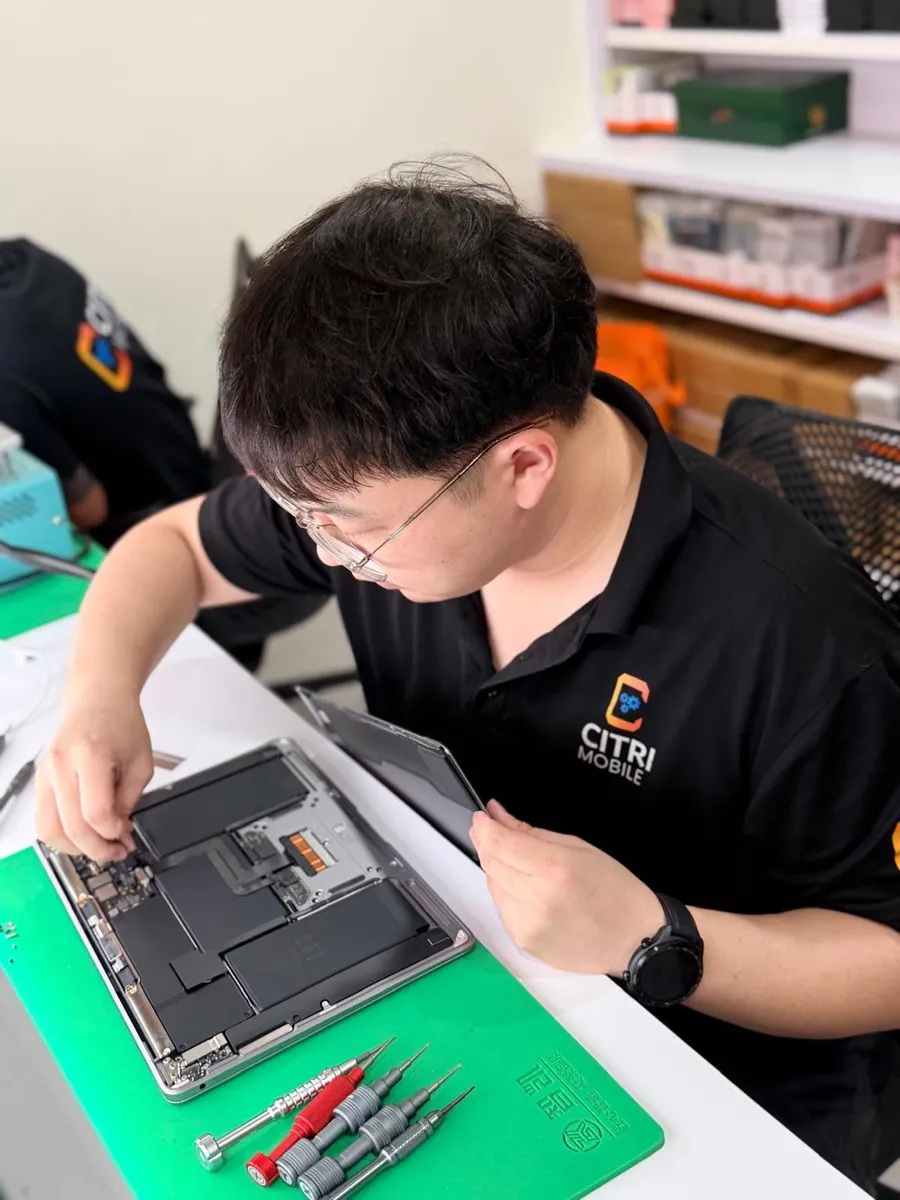
We diagnose it for free, and your data comes first. We check whether the storage still reads, and if it does, we try to get your files off before any board work. Then we find the fault: a disk problem we can sort in software, or a failed part on the logic board.
Logic board repair and liquid damage are quoted after the free diagnosis, because one symptom can be a single failed component or a much bigger job. You get a nett price before we start, and if the repair isn't worth it for your Mac's age, we'll say so.
One honest note on warranty. A repair by an independent shop like ours isn't covered by Apple's warranty or AppleCare. If your MacBook is still covered, check your coverage and go to Apple first. Out of warranty, our own repair warranty covers the part we fit.
MacBook stuck on Apple logo FAQs
- Why is my MacBook stuck on the Apple logo?
- Usually an update that hasn't finished, an accessory getting in the way, or errors on the startup disk. A forced restart, First Aid in macOS Recovery or a reinstall of macOS fixes those. If none of them does, it's most often the storage or the logic board, and that needs a diagnosis.
- How long should I wait before forcing it off?
- During a macOS update, Apple says the logo and bar can stay up much longer than usual and gives no cut-off. We'd leave it plugged in for at least an hour. With no update running, force it off straight away.
- Will I lose my data fixing a MacBook stuck on the loading screen?
- Not from a restart, safe mode, First Aid or a reinstall: Apple says reinstalling macOS doesn't remove your apps or personal data. Erasing the disk does, and that's Apple's step when First Aid can't repair it. Without a backup, don't erase. Bring it in and we'll check whether your files can be saved first.
- How much does it cost to fix a MacBook boot loop?
- The steps in this guide cost nothing. If it's hardware, Citri Mobile quotes logic board and storage faults after a free diagnosis, because the cost depends on which part failed. The quote is nett, and you approve it before work starts.
Getting it checked
We have four branches: People's Park Centre in Chinatown, Tampines, Yishun and Jurong Point, open 11am–9pm daily. We're rated 5.0★ from 2,900+ Google reviews, we fit Original Grade parts, and every repair carries a 30-100 days warranty honoured at any branch.
Send your model, a short video of the screen and the steps you've tried on WhatsApp. Walk-ins are welcome without an appointment, but message or call first so we can confirm we have the part your model might need in stock. Prices and models are on our MacBook repair in Singapore page.