MacBook
MacBook USB-C Port Not Working? Drives, Hubs and Displays, Checked in Order
In this article
- Is it the port, or the cable, hub or device?
- Why does my MacBook charge from a USB-C device but not see it?
- Does my Mac see the device at all?
- Why won't my external display work through USB-C?
- How many external displays can my MacBook run?
- Why does my MacBook say "USB Devices Disabled"?
- When is it the USB-C port itself?
- What happens if I bring it to Citri Mobile?
- MacBook USB-C port FAQs
- Getting it checked
A MacBook USB-C port that won't work with a drive, hub or display often turns out to be the cable, the hub, an accessory macOS hasn't allowed yet, or a display limit. Plug the device straight into the Mac, try the other ports and another cable, and check System Information. One port dead while the others work means the port needs fixing.
This guide covers data, accessories and external displays. If the problem is that your MacBook won't charge, that's a different set of checks, in MacBook not charging. The steps below come from Apple's support pages, with our notes added.
Is it the port, or the cable, hub or device?
Rule those out before the port. Apple's own order for a USB device that isn't working, from its USB troubleshooting guide:
- Check the device is switched on and its cable is pushed in properly at both ends.
- Unplug every other accessory and every hub or extension cable. Connect the device you're testing straight into the Mac.
- Move it to a different port.
- If it works in the new port, plug something else into the first port. Still nothing from that port? Shut down, unplug the Mac from the wall, wait about a minute and start it up again.
- Quit and reopen the app that uses the device, then restart the Mac.
Try a second cable too. A cable that charges fine can still be the problem, for reasons in the display section below. If the device works on another Mac and the cable works on another device, you've narrowed it down to your MacBook.
Why does my MacBook charge from a USB-C device but not see it?
On a MacBook with Apple silicon, you may have told it not to. When you plug in a new USB or Thunderbolt accessory, macOS asks whether to allow it to connect. Click Don't Allow (or miss the alert while the Mac was locked) and, according to Apple's accessories page, the Mac won't recognise the accessory or give it access to your data. It can still charge, though, which is why this looks like a broken port.
- Unplug the accessory, unlock the Mac, plug it back in and click Allow.
- If your Mac has been locked for three or more days, Apple says you may need to unlock it before a previously allowed accessory works again.
- The setting lives in System Settings > Privacy & Security > Accessories, under "Allow accessories to connect". The default asks once for each new accessory.
This applies to displays as well. An external monitor you didn't allow stays dark.
Does my Mac see the device at all?
System Information tells you in under a minute. Hold the Option key, open the Apple menu and choose System Information. Look under Hardware on the left, in the USB or Thunderbolt section, for your device.
- Listed but not working: the Mac and the port can see it, so the problem is the device, its software or its settings. Apple's advice is to check for the maker's latest software and the device's own documentation.
- Not listed in any port, with a known-good cable: look at the device and the cable again before the Mac.
- Listed in one port, missing in another: that second port is the suspect.
Why won't my external display work through USB-C?
The cable is the first thing to check. Apple says the USB-C Charge Cable that comes with many MacBook chargers is limited to USB 2.0 data speed and doesn't carry video at all (Apple's Thunderbolt cable page). So a monitor plugged in with your charging cable will stay dark however good the port is.
Apple's checklist for a dark or low-resolution external display goes on from there:
- Use a cable or adapter that supports your display's resolution and refresh rate. A USB-C or Thunderbolt adapter has to support DisplayPort Alt Mode, Thunderbolt 3 or Thunderbolt 4.
- If the display goes through a hub or dock, connect it straight to the Mac instead.
- Unplug the display from the Mac and from power, then reconnect it. Or close the lid for a few seconds and open it again.
- Open System Settings > Displays and hold Option to show the Detect Displays button.
- Check the monitor's own brightness and that it has power.
- With the lid closed, the Mac needs to be on power with an external keyboard and mouse.
One more: the original 12-inch MacBook has a single USB-C port, and Apple says a Mac with only one port doesn't support Thunderbolt connections. A Thunderbolt-only display or dock won't work on it.
How many external displays can my MacBook run?
Fewer than people expect on the Air. If your second monitor stays dark, check this before you blame a port.
- MacBook Air from 2020 to 2024, and the 13-inch MacBook Pro with M1 or M2: Apple's ports guide says a single external display.
- MacBook Air and MacBook Pro with M3: two, but only with the lid closed, on power, with an external keyboard and mouse, and on macOS Sonoma 14.3 (Air) or 14.6 (Pro) or later. Open the lid and the second one goes dark (Apple's dual monitor page).
- MacBook Air with M4: two external displays as well as the built-in screen. Closing the lid doesn't add a third (Apple's MacBook Air displays page).
- MacBook Pro with Pro or Max chips, and Intel models: it varies by chip and by resolution, so check Apple's MacBook Pro displays page or your model's tech specs.
A hub doesn't get around the limit. Apple says a hub or daisy-chaining can put two displays on one Thunderbolt port, but it doesn't raise the maximum your Mac supports.
Why does my MacBook say "USB Devices Disabled"?
The accessory, or everything on the hub together, is asking for more power than the port gives. Apple's fix is to unplug and reconnect it, try another port, connect it straight to the Mac instead of through a hub, and plug a self-powered hub into its own power adapter.
Apple's USB guide adds two more. A bus-powered device (one with no power cord) plugged into another bus-powered device may not get enough, so connect it to the Mac directly. And a hub should match the device's speed: a USB 3.0 drive on a USB 3.0 hub.
When is it the USB-C port itself?
When one port fails with a cable and device that work in every other port, the port is the problem. Apple's guide says that if you still can't use a device with a port after its checks, the Mac may need service. Other signs we look for:
- The cable feels loose in that port, or only works when you hold it at an angle.
- The connection drops when the MacBook moves, even with nothing else changing.
- The port stopped after a drop, after a cable was yanked out sideways, or after a spill.
- Every port fails, on every cable and device you try, in System Information too.
That last one points past the port to the logic board. So does any problem that started after liquid: don't wait on that one, because residue keeps corroding after the Mac looks dry (our MacBook liquid damage guide explains why).
What happens if I bring it to Citri Mobile?
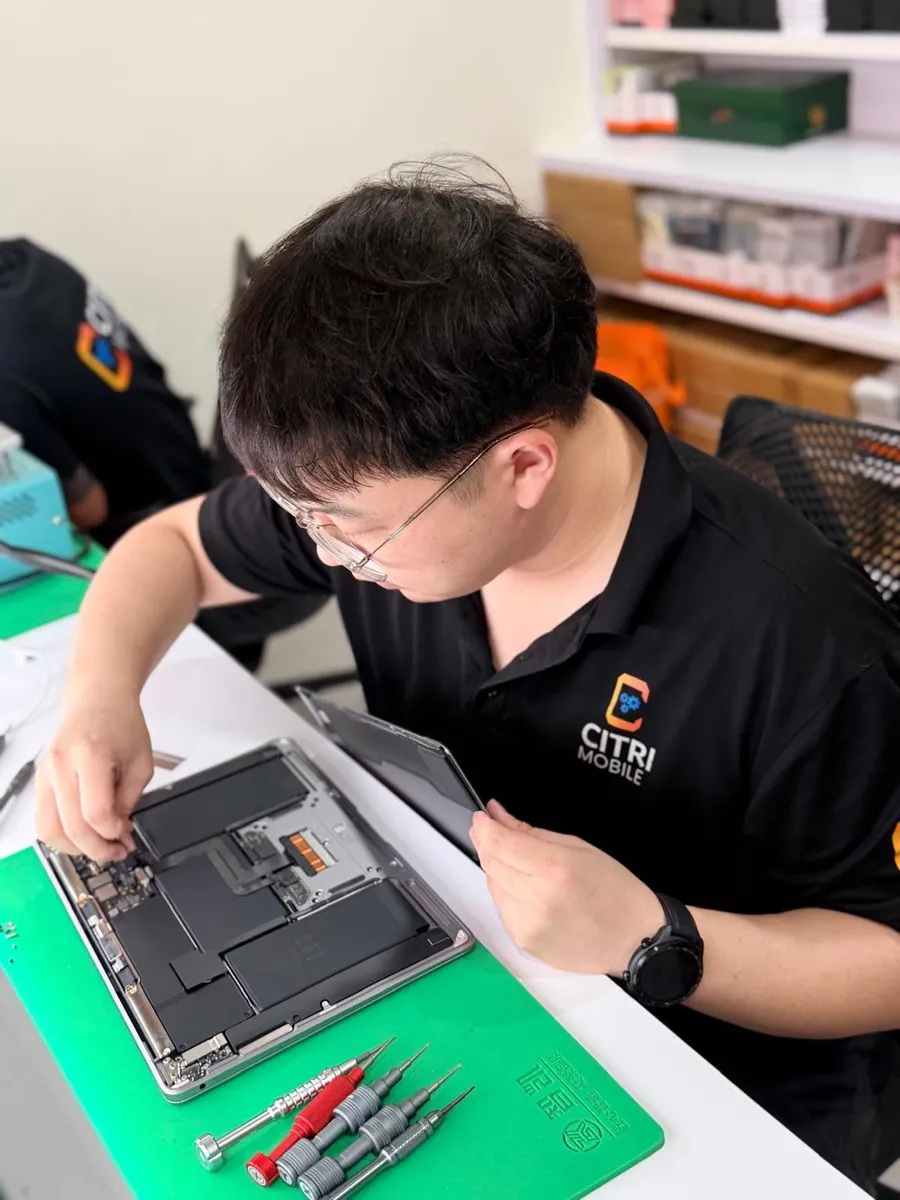
We diagnose it for free. We test each port with a drive and a display we know work, so we can tell you whether it's the port, your cable or accessory, or something on the board, before you spend anything.
A worn or damaged USB-C port is a part we replace with an Original Grade one. On a USB-C MacBook the same ports charge it, so on our price list it's the MacBook charging port, at $85–$95 depending on the model. If the fault is on the logic board instead, it's quoted after the free diagnosis, because it can be one small component or a much bigger job. You get a nett price before we start. Back up first if you can (how to back up your MacBook).
One honest note on warranty. A repair by an independent shop like ours isn't covered by Apple's warranty or AppleCare. If your MacBook is still covered, check your coverage and go to Apple first. Out of warranty, our own repair warranty covers the part we fit.
MacBook USB-C port FAQs
- Why is my MacBook not detecting my USB drive?
- Usually the cable, a hub, low power or an accessory that hasn't been allowed to connect. Plug the drive straight into the Mac, try another port and cable, and on Apple silicon unlock the Mac and click Allow when asked. Then check System Information under Hardware. If the drive shows there but won't open, the problem is the drive, not the port.
- Can I use my MacBook charging cable for a monitor?
- Not the Apple USB-C Charge Cable. Apple says it's limited to USB 2.0 data and doesn't support video. Use a Thunderbolt cable, or a USB-C cable or adapter that supports DisplayPort Alt Mode.
- Why does only one of my monitors work on my MacBook Air?
- Most MacBook Air models from 2020 to 2024 support one external display. The M3 Air runs two only with the lid closed, and the M4 Air runs two with the lid open. A hub doesn't raise the limit.
- How much does it cost to fix a MacBook USB-C port in Singapore?
- At Citri Mobile a USB-C port replacement is $85–$95 depending on the model, with an Original Grade part. A fault on the logic board is quoted after a free diagnosis. All prices are nett.
- Can a dead USB-C port be a logic board problem?
- Yes, especially when every port fails or the problem started after liquid. Apple says the Mac may need service if a port still won't work after its checks. We test the ports first, so you know which it is before you pay for anything.
Getting it checked
We have four branches: People's Park Centre in Chinatown, Tampines, Yishun and Jurong Point, open 11am–9pm daily. We're rated 5.0★ from 3,000+ Google reviews, we fit Original Grade parts, and every repair carries a 30-100 days warranty honoured at any branch.
Send your model, which port and what you've plugged in on WhatsApp. Walk-ins are welcome without an appointment, but message or call first so we can confirm we have the part your model might need in stock. Prices and models are on our MacBook repair in Singapore page.