MacBook
Fix MacBook Overheating Issues
In this article
Is your MacBook getting uncomfortably hot? You're not alone. At Citri Mobile, we help countless customers deal with MacBook overheating problems, whether it’s sudden shutdowns, fan noise that won’t quit, or a machine that’s too hot to touch. In this guide, I’ll walk you through the common causes, how to troubleshoot overheating, and what to do if your MacBook still won’t cool down properly.
If you’re looking for a deeper dive into other issues like screen problems, battery drain, or charging faults, check out our Ultimate MacBook Troubleshooting and Repair Guide. It’s a full breakdown of the most common MacBook issues we fix every day.
Why Is My MacBook Overheating?
There are several reasons why your MacBook might be running hotter than usual. Here’s a breakdown of the most common causes:
- Heavy Workloads: Editing videos, gaming, or running multiple apps can push your MacBook’s processor to its limit, generating heat.
- Poor Airflow: Using your MacBook on soft surfaces like beds or couches can block the cooling vents underneath, trapping heat inside.
- Dust Build-Up: Over time, dust and debris can clog the internal fans, reducing their efficiency and causing your MacBook to overheat even during light usage.
- Outdated macOS or Software Bugs: Sometimes, macOS updates include thermal management fixes. Skipping updates may keep your system running inefficiently.
- Background Processes: Apps running in the background (like Chrome tabs or syncing tools) can silently hog CPU resources.
- Battery or Hardware Faults: A damaged battery or failing logic board component can also cause your MacBook to heat up abnormally.
How to Fix an Overheating MacBook
Let’s go through some practical steps you can try at home to cool things down:
1. Shut Down Unnecessary Apps
Check your Activity Monitor (Applications > Utilities > Activity Monitor) to see which apps are consuming the most CPU. Quit anything unnecessary. Browsers like Chrome can be surprisingly demanding.
2. Update macOS and Apps
Make sure your macOS and all installed applications are up to date. Apple often releases updates that improve performance and cooling efficiency.
3. Use a Hard, Flat Surface
Place your MacBook on a desk or laptop stand to ensure proper airflow. Avoid using it on beds or cushions where vents get blocked.
4. Clean Out the Fans
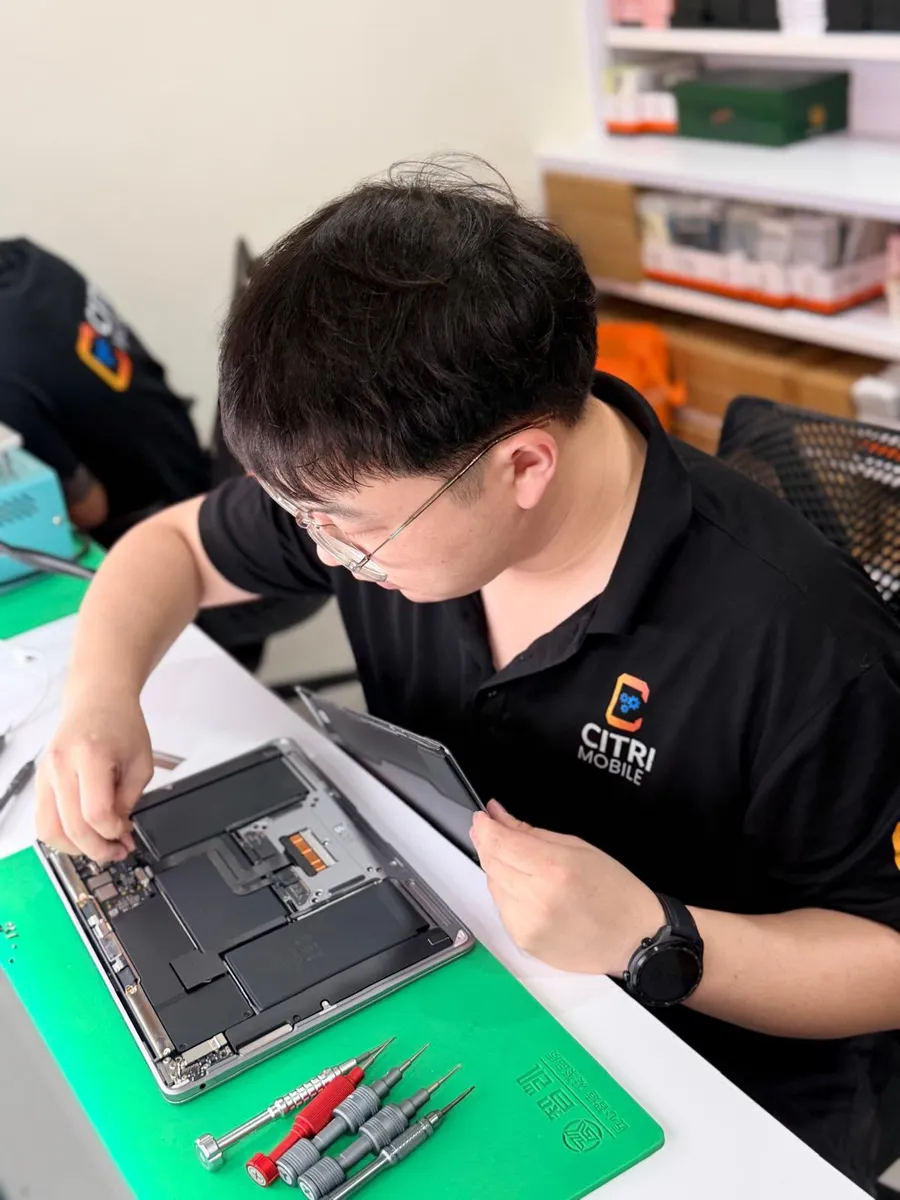
If your MacBook is more than a year old, the fans might be clogged with dust. You can gently clean the vents using compressed air, or let us handle it safely during a professional internal cleaning.
5. Reset the SMC
The System Management Controller (SMC) manages power and thermal settings. Resetting it often helps. The method depends on your Mac model. If you're unsure how to do this, feel free to contact us, we’ll walk you through it or do it for you.
6. Use a Cooling Pad
While not a long-term fix, a laptop cooling pad can temporarily help lower surface temperatures when doing heavy work like video editing or 3D rendering.
Still Overheating? It Might Be a Hardware Issue
If your MacBook continues to overheat despite trying all the above, it could indicate an internal fault, such as:
- Fan Malfunction: If your fans are spinning too loudly or not at all, they may be failing.
- Thermal Paste Dried Out: Over time, the thermal compound between the CPU/GPU and heat sink degrades, reducing heat transfer efficiency.
- Battery Swelling: A swollen battery can press against internal components and cause heat retention or system stress.
We can help diagnose these issues and provide safe, on-the-spot repairs at our MacBook repair centre in Singapore. Get in touch with us here and we’ll take a look.
Find the Right Repair for Your MacBook Model
Not sure what repair you need? You can view our MacBook repair archive to select your specific model. From there, you’ll see all the available services, check pricing, and contact us directly. Whether it’s a MacBook Air, MacBook Pro, M1, or Intel model, we cover them all.
Let Us Help You Fix Your MacBook
At Citri Mobile, we’ve helped hundreds of MacBook users resolve overheating issues, from minor fixes to full internal servicing. Don’t let heat slow you down, book an appointment with us or drop by our shop today.
And remember, if you're facing other MacBook problems, our Ultimate MacBook Troubleshooting and Repair Guide is your go-to resource for tips and solutions.