MacBook
Why Your MacBook Is Running Slow And How To Fix It
In this article

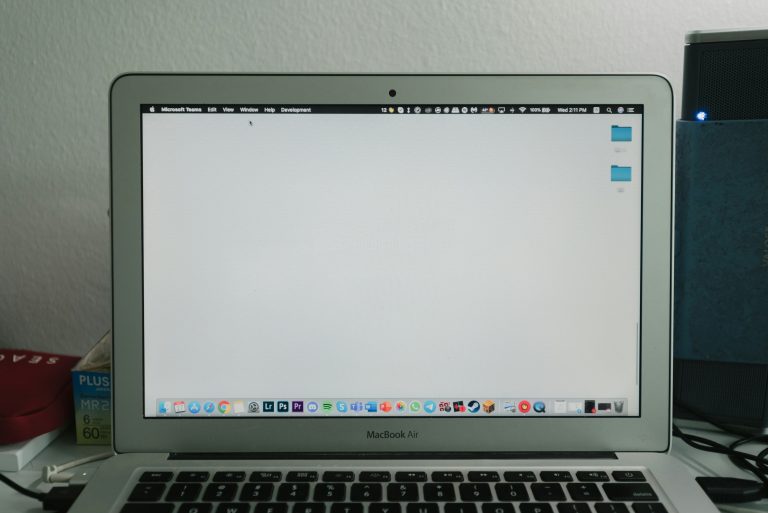
MacBook running slow? It can be frustrating when your once-lightning-fast device starts crawling at a snail’s pace. Whether you’re dealing with long load times, slow startups, or apps freezing unexpectedly, a sluggish MacBook can disrupt your work and your peace of mind. Before you worry about expensive repairs or replacements, it's worth understanding that many MacBook performance issues have straightforward fixes.
In this guide, we’ll walk you through the common reasons your MacBook is running sluggishly, and how to breathe new life into it with practical solutions.
Lack Of Storage Space
One of the leading causes behind a slow-running MacBook is simply running out of storage. When your hard drive is nearly full, the system has less space to create temporary files and manage processes efficiently. This can cause MacBook lagging, the operating system to slow down, and even result in frequent crashes.
Solution:
- Check your available storage under Apple Menu > About This Mac > Storage.
- Delete large, unnecessary files.
- Move media (photos, videos) to external drives or cloud storage.
- Empty your trash regularly.
- Use the Optimize Storage feature under System Settings to manage files more efficiently.
Clearing out clutter is one of the simplest forms of MacBook speed optimization.
Too Many Startup Programs
When too many programs launch at startup, you might notice that your MacBook running at a snail’s pace or even MacBook freezing up shortly after logging in. Each additional app that opens automatically when you log in drains system resources and slows down performance.
Solution:
- Go to System Settings > General > Login Items.
- Remove apps you don’t need immediately at startup.
Focus on addressing your MacBook running unresponsively right from boot-up can lead to a dramatic performance boost.
Outdated macOS or Applications
Using an outdated version of macOS or running apps that haven’t been updated can cause compatibility issues and MacBook performance issues. Updates often include bug fixes, optimisations, and security improvements that help keep your device running smoothly and resolve hidden slowdowns.
Solution:
- Regularly check for updates under System Settings > General > Software Update.
- Update apps through the App Store or the developer’s official site.
Keeping your operating system and software current is an essential step in MacBook performance troubleshooting.
Heavy Background Processes
Ever wonder, "Why is my MacBook so slow even though I’m not doing much?" The answer could be hidden background processes. Often, apps running in the background, especially browser tabs, creative software, and cloud sync apps, consume RAM and CPU, leading to MacBook speed problems like lagging or delayed responses.
Solution:
- Open Activity Monitor (found in Applications > Utilities) to see which apps are using the most CPU, Memory, and Energy.
- Quit apps that are unnecessarily hogging resources.
This simple check can prevent your MacBook running with delays and help reclaim lost performance.
Ageing Hardware and Limitations
If you’re using an older MacBook, you might be facing natural wear and tear. Components like hard drives (especially older HDDs), RAM, and batteries degrade over time. Even with good software hygiene, hardware limits can start dragging your system down and result in MacBook running at reducing speed.
Solution:
- Consider upgrading to an SSD if you have an older MacBook with a mechanical hard drive.
- Add more RAM if your model allows it.
- If the MacBook is beyond repair, it might be time to consider a replacement.
While these upgrades may not eliminate all MacBook performance diagnostics concerns.
Malware or Virus
While macOS is relatively secure, no system is immune. Malware, adware, and unwanted software can bog down your device’s speed by hijacking system resources, compromising system stability, and causing unexpected behaviour, all of which can result in your MacBook running below optimal speed.
Solution:
- Install trusted antivirus or malware removal software.
- Avoid downloading software from unverified sources.
- Regularly scan your system for threats.
Quick Recap: How to Fix a Slow MacBook
If you're dealing with a MacBook running sluggishly, here’s your action plan:
- Free up at least 15–20% of your total storage.
- Disable unnecessary login items.
- Keep macOS and apps updated.
- Use Activity Monitor to identify memory hogs.
- Upgrade hardware if needed.
- Perform regular malware scans.
These simple steps can go a long way toward optimizing MacBook performance and restoring your productivity.
Final Thoughts
Dealing with a slow-running device can be incredibly frustrating, but the good news is that many issues can be solved with a little maintenance. Remember, many MacBook performance issues come down to common, preventable problems. By understanding the causes and applying MacBook speed optimization techniques, you can extend your Mac’s life and enjoy smoother, faster operation.
Need Help with a Slow MacBook?
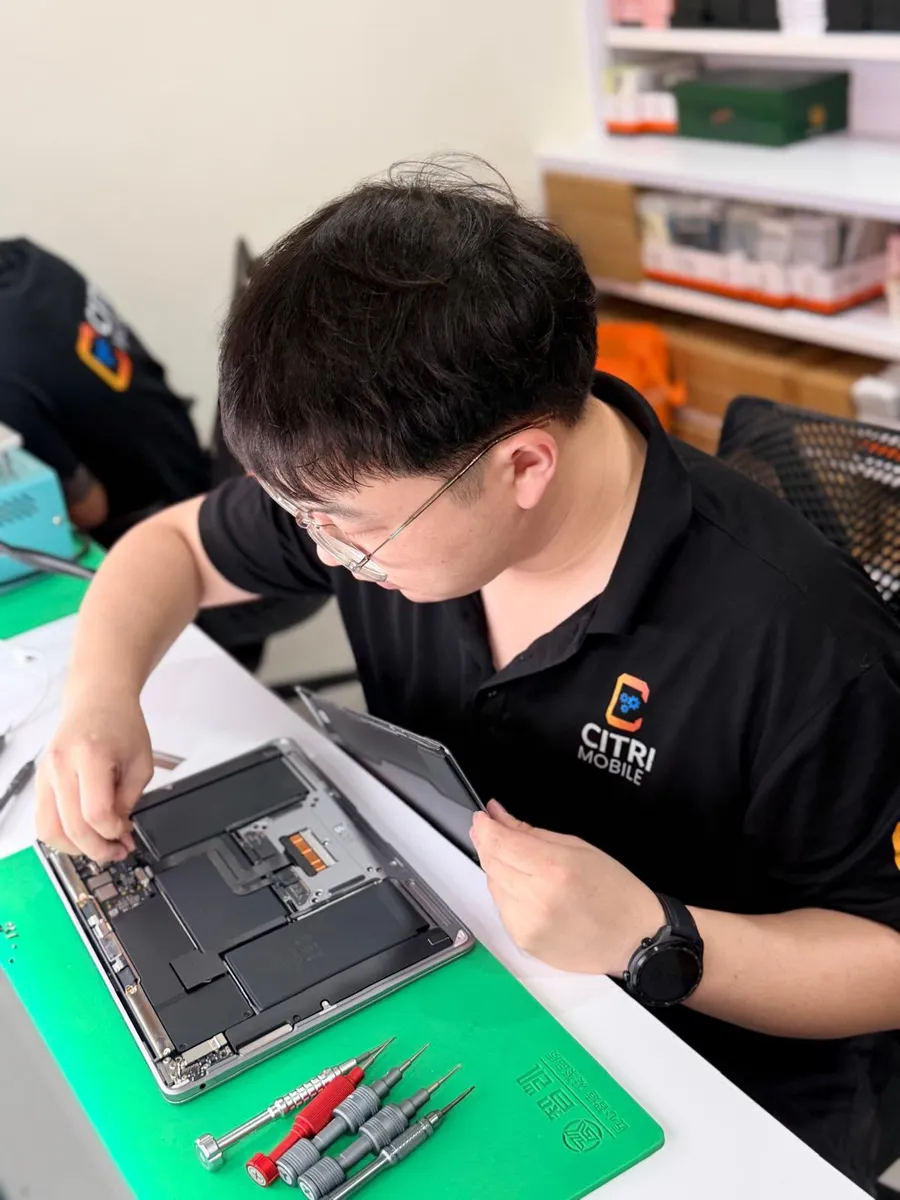
If you've tried everything and your MacBook is still running slow, it might be time to get professional support. At Citri Mobile, we specialize in fast, reliable Apple MacBook repair services in Singapore, from diagnosing performance issues to upgrading hardware for better speed. Visit us at our Tampines or Chinatown outlets today, or WhatsApp us for a quick consultation.
Slow MacBook: FAQs
- Why is my MacBook suddenly so slow?
The usual causes are a nearly full drive, too many startup and background apps, an outdated macOS, or ageing hardware like a spinning hard drive or low RAM. Working through those in order clears up most slowdowns.
- Will more storage or RAM speed up my MacBook?
Freeing up drive space almost always helps, because macOS slows down when the disk is nearly full. On older MacBooks with a spinning hard drive or upgradeable memory, moving to an SSD or adding RAM makes a big difference. Newer models have these soldered on, so we'll tell you what's possible for your exact model.
- When should I bring a slow MacBook in for repair?
If it's still slow after clearing space and closing background apps, or it's also freezing, overheating or shutting down, have it checked. We run a free diagnostic and give you a clear quote before any work, with Original Grade parts and a 30-100 days warranty.